
Everything that runs your channel
Schedule, vault, Control Room, destinations, and more — what ships in Hustle TV Studio today, with roadmap items labelled planned so you can see what's next.
Broadcast Scheduling
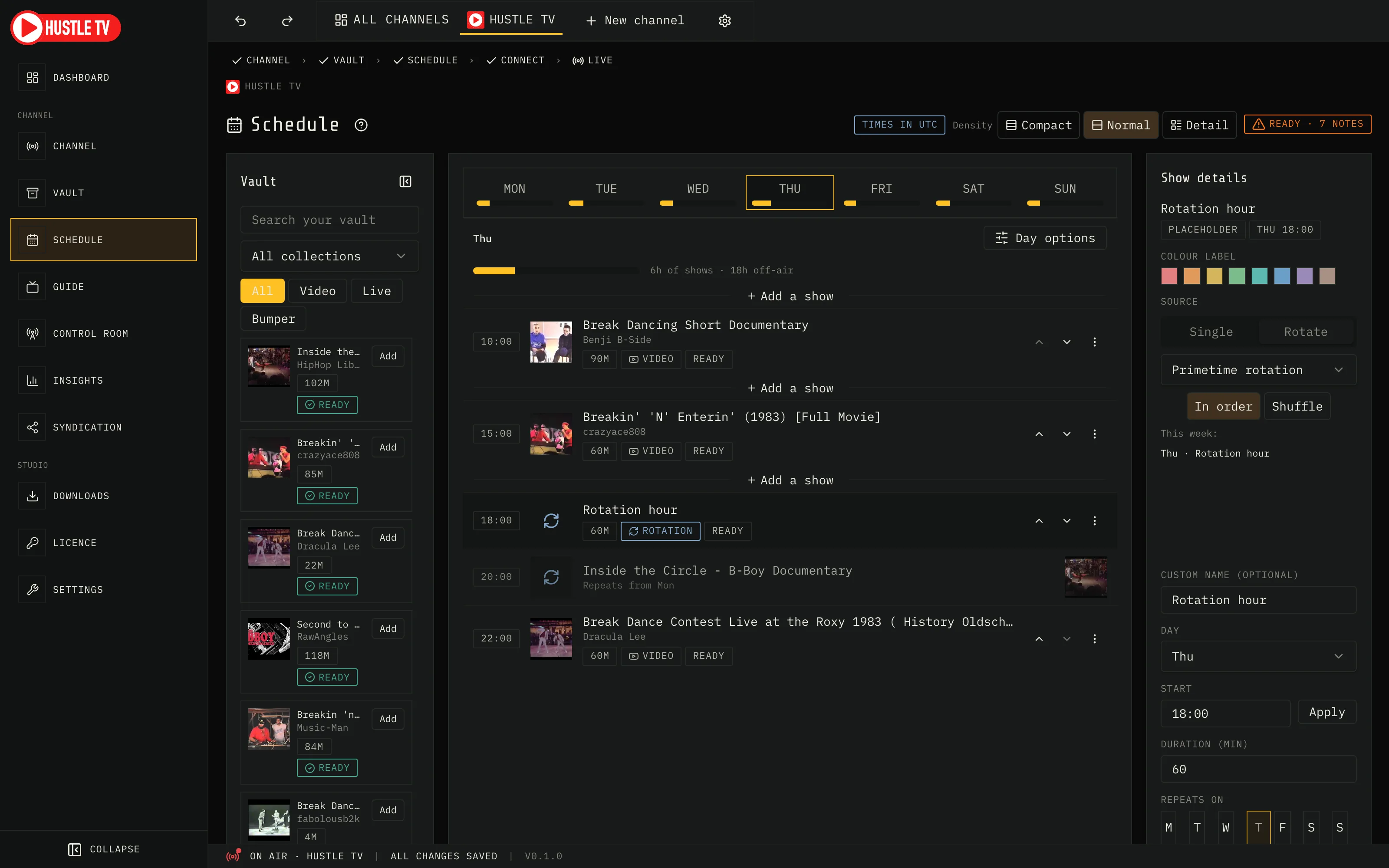
Weekly show list
Build your channel's entire week one day at a time — add shows, reorder them, and every start time is worked out for you automatically.
Automatic timing
Reorder a show and the rest of the day recalculates instantly, with the transition card placed automatically, so tight schedules stay contiguous by default.
Off-air by design
Any minute of the day not covered by a show or a declared break airs your closing card — the next three shows and a countdown. Going live needs only today's shows to be ready.
Breaks, sized to the gap
Put a break between any two shows, or run one to a time you choose; your "We'll be back" card keeps the channel on air until the next show starts.
Compact day
Pull a day's shows tight with one click, closing gaps without touching your other days' start times.
Planned: Wall-clock anchors
Pin a show to a clock time so reordering the rest of the day never moves it. Not in today's Studio, where start times always follow the schedule's own order.
Repeat and strip programming
Set a show to repeat across chosen weekdays, weekends, or every day, the way real channels strip a series.
Rotation slots
Point a slot at a whole collection instead of one file; the channel rotates through it in order or shuffled, a different (but deterministic) pick each week.
Copy and replace a day
Duplicate one day's schedule onto another, or wipe and replace it outright, both undoable in one click.
Planned: Daypart bands on the Schedule
Breakfast, daytime, primetime, and late-night bands on each day's schedule. Today the Guide marks primetime; the Schedule does not yet.
Live readiness diagnostics
Every scheduling problem — missing media, a day with no shows, a source that failed — is a sentence a human would say, with a link to the place where you can act. Issues block Go live; notes never do.
Live re-plan
Add or move a show while the channel is on air and it cuts in at the next card — a programme already playing is never interrupted.
Add a show exactly where you mean
An Add button on every vault card and an “Add a show” strip between any two shows, so a new show lands in the slot you chose — never a surprise duplicate.
Times in your city
Choose the city your clocks show. Every clock in Studio, the guide and the published outputs follows it; the broadcast runs on UTC underneath.
Live source scheduling
Bring in a partner's live feed — pull their stream by pasting its address, or open a listener and hand them somewhere to push to — and schedule it into any slot like any other show. It airs for exactly that window; if the feed drops, a "Live feed lost — back shortly" card holds the slot while Studio keeps trying to reconnect.
Command-palette quick add
Press "+ Add a show" (or "Add a show here" on any row) to search your Vault and drop a show into the day; its start time is worked out for you.
Keyboard operable
Tab to any show, Enter to act, Move up, Move down, and Move to… from the keyboard, and a shortcuts reference (press ?) at any time.
Multi-channel
Run several complete channels
Each channel has its own identity, schedule, YouTube connection and distribution. Broadcast two channels at once, and stopping one never touches the other.
Each channel's own connection
Every channel connects to YouTube and its own RTMP destinations independently — no shared stream key between channels.
Switch channels in one click
Every channel is a tab across the top of Studio — its logo and name — with an All channels tab for the Dashboard. ⌘1 to ⌘5 jump straight to a channel; the page you are on names its channel.
The Dashboard, across every channel
A totals strip up top — on air, need attention, downloads failed, not connected — then one card per channel, each showing today's shows, connection state, and airtime for the last 7 days. A channel that's on air also shows its live playout monitor with what's airing now and next. Everywhere else you are looking at one channel at a time.
One vault, allocated
Your media lives in one Vault. Choose which channels a collection or programme is available on; a channel's schedule only offers what it may carry, and a show that isn't available blocks Go live until you allow it.
One channel, or up to five
The licence sets the ceiling — one channel on Trial and Single-channel, up to five on Multichannel — enforced when you create a new channel, not a soft suggestion.
The Guide (EPG)
A real TV guide for your channel
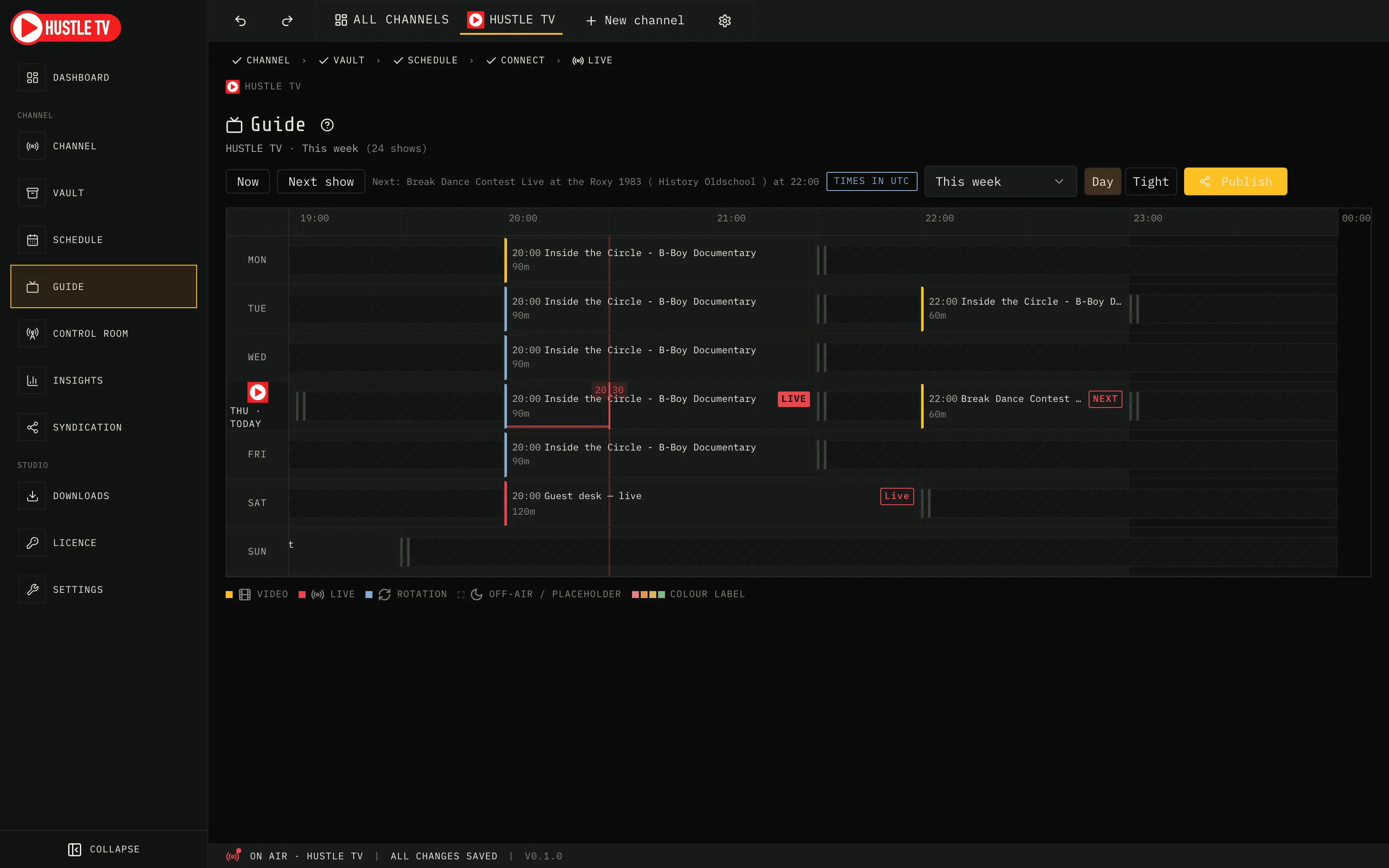
A horizontal, read-only week view built on the same grammar every viewer already knows from decades of TV guides — no onboarding required.
Live now line
A moving line shows exactly where "now" sits across your week, so you always know what's airing without checking the clock.
Now & Next, always visible
The currently airing show and what's coming next are called out with their own visual treatment, on the guide and in Control Room.
Primetime, at a glance
Your 18:00–23:00 slot is visually weighted on the guide the way broadcast schedules highlight peak hours.
Genre colour coding
Every show carries a colour by type, with a legend, so you can read your channel's rhythm without reading every label.
Programme detail on demand
Click any slot for a synopsis card — thumbnail, times, duration, and status — with one link straight back to the editor.
Live slots read as live
A scheduled live source is marked distinctly on the guide before and during its window, so viewers and you both know it's not a file.
Publish your week as an image
Export a 1080p schedule card, or a portrait "Tonight" version, ready to post to socials or Discord.
Publish your week as text
A plain listing formatted for pasting straight into a YouTube description.
Publish your week as XMLTV
A standards-compliant guide feed for anyone running downstream EPG tooling.
Channel Identity & Presentation
One home for your on-air identity
Logo, screen bug, and every continuity card live in a single Channel page, each with a live preview of exactly what the engine will output.
Screen bug preview
See your bug at its true broadcast position and size on the preview frame before it ever airs.
Five continuity cards
Countdown, transition, closing, ad-window, and break cards are each configurable with your own artwork, or a clean auto-generated fallback.
"We'll be back" card
Your break card states your return time and the first three shows of your next broadcast window, generated automatically from your schedule.
Colour-coded show labels
Tag shows or whole collections with one of eight colours to see your week's shape across the schedule, guide, and rundowns at a glance.
The Vault
Three ways to add media
Add files, add a folder, or paste a YouTube or stream URL.
Collections, nested
Organise your Vault into collections and sub-collections, with roll-up counts and filtering.
Kind and state at a glance
Filter by video, live source, bumper, or placeholder, and see download and readiness status on every card.
Safe removal
Deleting media that's still scheduled tells you exactly how many slots use it before you confirm.
Titles and descriptions, tidied
An on-device model rewrites scrappy upload titles into clean programme names and one-line descriptions for your guide. It runs on your Mac and nothing leaves it; re-run any item, or switch it off.
The vault checks itself
Studio reconciles the vault with what is actually on disk and flags any item whose file has gone, so a show never goes to air pointing at nothing.
Control Room (Live Operations)
Pre-flight checklist
Four checks — channel selected, YouTube connected, today has programming, all media ready — before the Go live button ever activates.
Connect YouTube your way
Sign in with a one-time Google code, or paste a stream key directly — each explained in plain pros and cons so you can choose confidently, with a live countdown and a cancel button on the sign-in path if you change your mind.
Live diagnostics in plain English
Every blocker is written as a sentence a human would say, with a Fix link to the page where you can act on it.
On-air monitoring
Current title, viewer count, per-destination health, and elapsed/remaining time, all reading from the same clock your channel actually plays on.
Presentation at a glance
See your bug, logo, and every continuity card's status without leaving the live console; edit them on the Channel page in one click.
Skip and stop, with consequences stated
Skip to the next show or stop the broadcast entirely, each confirmed with exactly what will happen.
Distribution & Syndication
Multi-destination streaming
Send a channel's encode to YouTube and additional RTMP destinations simultaneously — each channel's destinations are its own.
Write-only stream keys
Keys are stored in your system keychain and never displayed once saved.
Device Distribution (Pro) — on the roadmap
Desk to living room is next: Studio ships the channel today; TV sticks and a central directory are planned, not in the current desktop download.
Your channel, on a real TV
Planned: watch on a Hustle stick or sideloaded Firestick app — television, not a browser tab.
One-tap channel discovery
Planned: devices find your channel through a directory that updates when you go on or off air.
Category browsing
Planned: viewers browse channels by category — music, sport, film & TV, gaming, and more.
Private channels with a PIN
Planned: keep a channel out of public discovery and gate it behind a PIN for household or community use.
Central EPG sync
Planned: your Studio-published guide reaches every device, kept in sync with your schedule.
Boots straight to your channel
Planned: on a branded Hustle stick, the app is the system launcher — plug in, and it's on.
Reliability & Trust Roadmap
Planned for the public directory and device layer — not claims about Studio today.
Broadcaster quality score
Planned: a transparent uptime score from how consistently a listed channel has actually been broadcasting.
Uptime commitment
Planned: listed channels commit to coverage targets over a rolling window, measured automatically — not on the honour system.
Viewer feedback
Planned: viewers can rate a channel and report problems, with reports reviewed by a person before action.
Channel moderation with recourse
Planned: channels can be suspended with a stated reason and a path back to good standing — never silently dropped.
Content responsibility is clear
Planned: creators are responsible for the rights to what they broadcast, set out in distribution terms before a public listing goes live.
Hustle TV Studio (the desktop app)
Dark, built for a control room
A dark-first interface designed for long broadcast sessions — with a proper light theme, not an invert.
Autosave, always
Every schedule change is saved as you make it; the status strip tells you so.
Undo where it matters
Destructive schedule actions — remove, copy, replace a day — come with one-click undo.
Automatic updates, on your terms
Studio checks for updates and asks before installing — nothing changes without your say-so.
Trial first, licence when it earns it
Use the full product before you pay for it.
Know what you're running
Settings shows the version, what is bundled with Studio, and the state of each dependency in plain words — before anything goes wrong on air.
Ships complete, nothing else to install
Studio bundles its own broadcast engine and video-import tool, so broadcasting and importing YouTube videos never depend on anything else already being on your Mac — no separate installs. The open-source licences for what's bundled are one click away in Settings.
Your data stays on your Mac
Your vault, schedule and keys live on this Mac. The licence verifies offline; nothing phones home to keep the channel running.